Academy Website Creation: How to Place Existing Images
Learn how to choose and place images for an academy introduction, class information, and consultation prompts. Check the preparation list, a hypothetical example, and common mistakes to avoid.
Decide first: What should visitors learn?
Before starting Academy Website Creation, decide what visitors need to find on the first screen. The academy name, age group, main classes, location, and consultation method are essential. Images should support this information. Rather than adding many attractive photos, placement becomes easier when you decide which question each image answers.
For the academy introduction, consider photos that show the actual space or class atmosphere. For program information, use images that explain the lessons, such as textbooks or class activities. A welcoming photo can work in the consultation section, but make sure it does not overshadow the contact method and consultation details. If you cannot use actual photos, check usage rights for the materials you have and obtain permission to publish identifiable people. Do not present scenes that misrepresent what the academy is like.
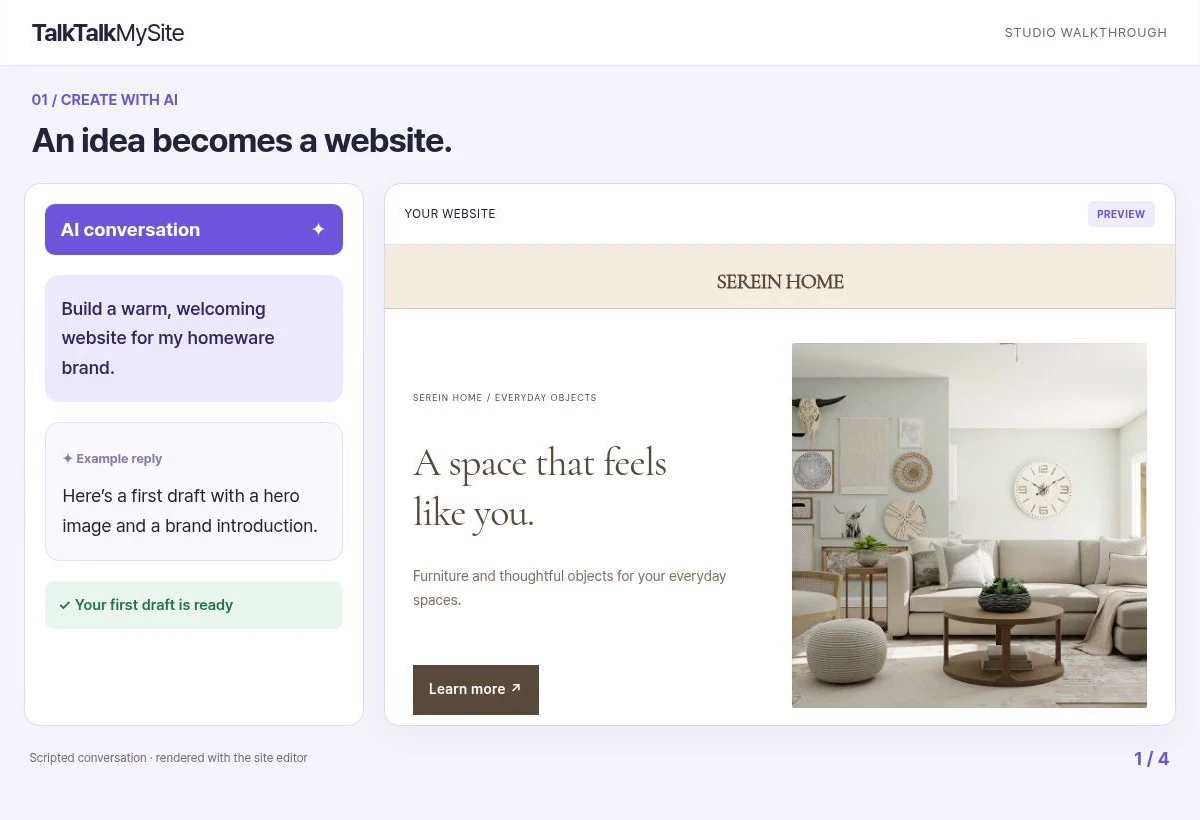
Image selection and placement checklist
- First screen: Choose one image that conveys the academy’s character and a representative class at a glance. Check that the main message and consultation button remain readable over it.
- Program page: Place relevant images near the explanation of each class. Reusing the same photo for different programs can blur the distinctions between them.
- Location and facilities: Pair space photos with information that helps visitors find the academy. Do not rely on photos alone to explain the location or facilities.
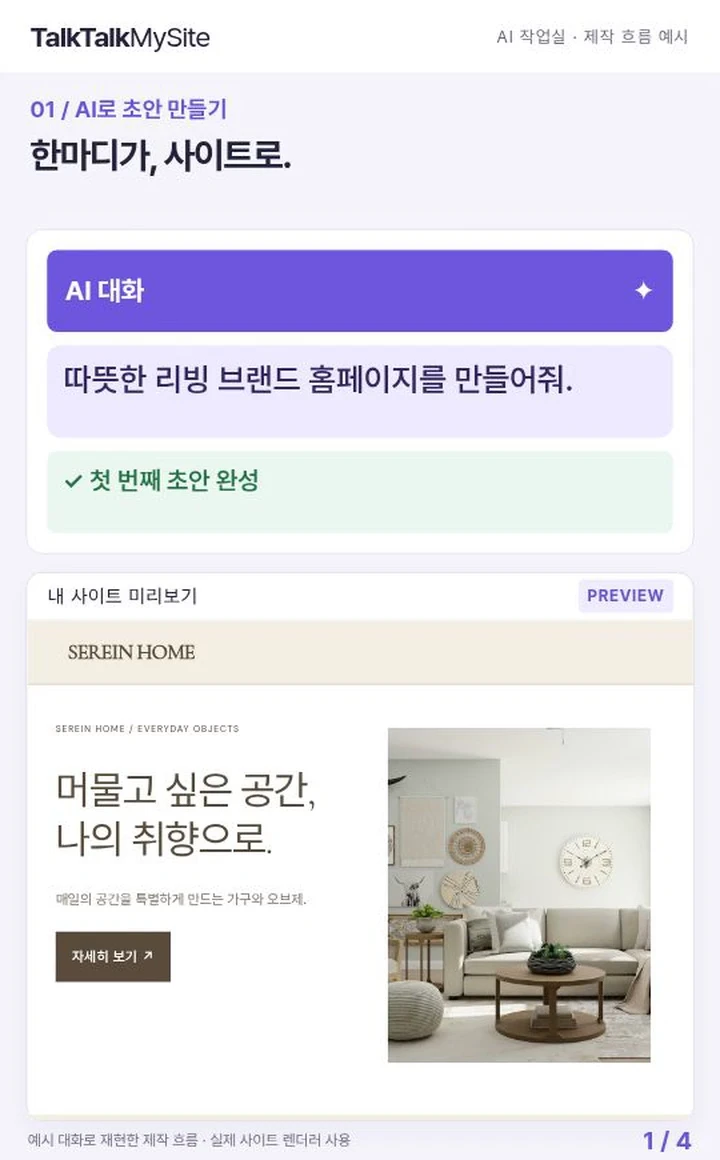
- Mobile screen: Check on a phone that images are not awkwardly cropped or covering text. Adjust the framing so that important faces or learning materials are not cut off at the edges.
- Before uploading: Review clarity, aspect ratio, file size, and mobile loading. Avoid placing several similar photos in a row or stretching a page with decorative images.
Hypothetical example: An elementary math academy
For a hypothetical example, suppose an academy for elementary students selects classroom, textbook, and activity photos from its existing materials. Put a scene from a class on the first screen, followed by clearly stated grade levels and consultation details. On the class information page, place a textbook photo beside its explanation, and use an activity photo only if it reflects the actual teaching approach. Create a separate, concise consultation section that shows the contact details and steps for getting in touch. If photos are limited, add text about the class format and what students need rather than repeating the same image.
Start with no-code and review it yourself
TalkTalkMySite offers no-code templates, AI chat, and visual editing, so you can begin a draft without coding or design experience. To start affordably, put the academy information and existing images into a template, use AI chat to refine wording or layout ideas, and create a first page.
You can then update text and images yourself to keep information current. However, before publishing, you must check the image choices, content, layout, and academy details for accuracy. Basic is for a website, Standard is for a store, and Premium is for multilingual use, so compare the scope you need first. Payments, social login, domains, and shipping may require separate setup. Templates and owner editing can help reduce custom-build or recurring update costs, but check plan terms, AI credits, and setup requirements. They do not guarantee rankings or more consultations, and they cannot eliminate mistakes. As a next step, try the AI workspace to build your first page, then check the images and consultation information together on a phone.
#Academy #AcademyWebsiteCreation #AcademyNoCode #AcademyTemplates #AcademyDesign #AcademyOnlinePresence #WebsiteCreation #NoCodeWebsite #AIWebsiteBuilder #WebsiteTemplates #WebsitePlanning #WebsiteManagement #NoCode #NoCodeBuilder #BuildWithoutCoding #DesignForBeginners #AIAssistedDesign #TemplateCustomization #ResponsiveDesign #MobileFriendly #ContentPlanning #BrandIntroduction #PageStructure #UserExperience #VisualEditing #WebsiteImages #LaunchPreparation #BeginnersGuide #MaintenanceChecklist #OnlineBusiness