Baby and Kids Website Creation: Check Mobile Menus and Text Before and After
Make it easy for parents to find information on a phone. This guide uses a hypothetical kids’ class to compare mobile edits and explain what to prepare and how to choose a creation tool.
Start by checking the page from a parent’s perspective
A baby and kids website should help a caregiver quickly find class ages, schedules, locations, and how to apply, even while away from a desk. On mobile, long menus or small text can make important information hard to notice. Before starting website creation, check the home screen and menus on an actual phone. Use labels that immediately tell visitors what they can do, such as “Classes,” “Schedule & Location,” and “Apply & Contact,” and place frequently needed information first.
Hypothetical example: Starlight Kids Art Class
**Before:** On the mobile site for Starlight Kids Art Class, a single-row menu displayed “About,” “Programs,” “Notices,” “Booking,” “Consultation,” and “Directions.” The menu text was small, and the program description was crowded onto one screen. Caregivers had to open several menu items to find age-specific classes and application instructions.
**After:** The menu was grouped into three items: “Classes,” “Schedule & Location,” and “Apply & Contact.” The home screen showed the intended age range, the next class date, and an application button. Body text was enlarged to be easier to read on a phone, and long explanations were split into short paragraphs and lists. This is an illustrative hypothetical edit; check the actual site on a device before publishing.
Prepare materials and check the site yourself
Gather a logo or class name, age ranges and class descriptions, schedules and locations, contact details, and photos to publish, including confirmation that you are allowed to use them. If you plan to accept applications, also organize the information needed for registration and the staff review process. After building the site, use this checklist on a phone:
- Are menu labels short, with a clear purpose for each item?
- Can visitors find the age range, schedule, and application instructions from the first screen?
- Are body text and button labels easy to read and free of overlap?
- Do photos avoid obscuring text or application buttons?
- Are the contact details, address, and class information current and accurate?
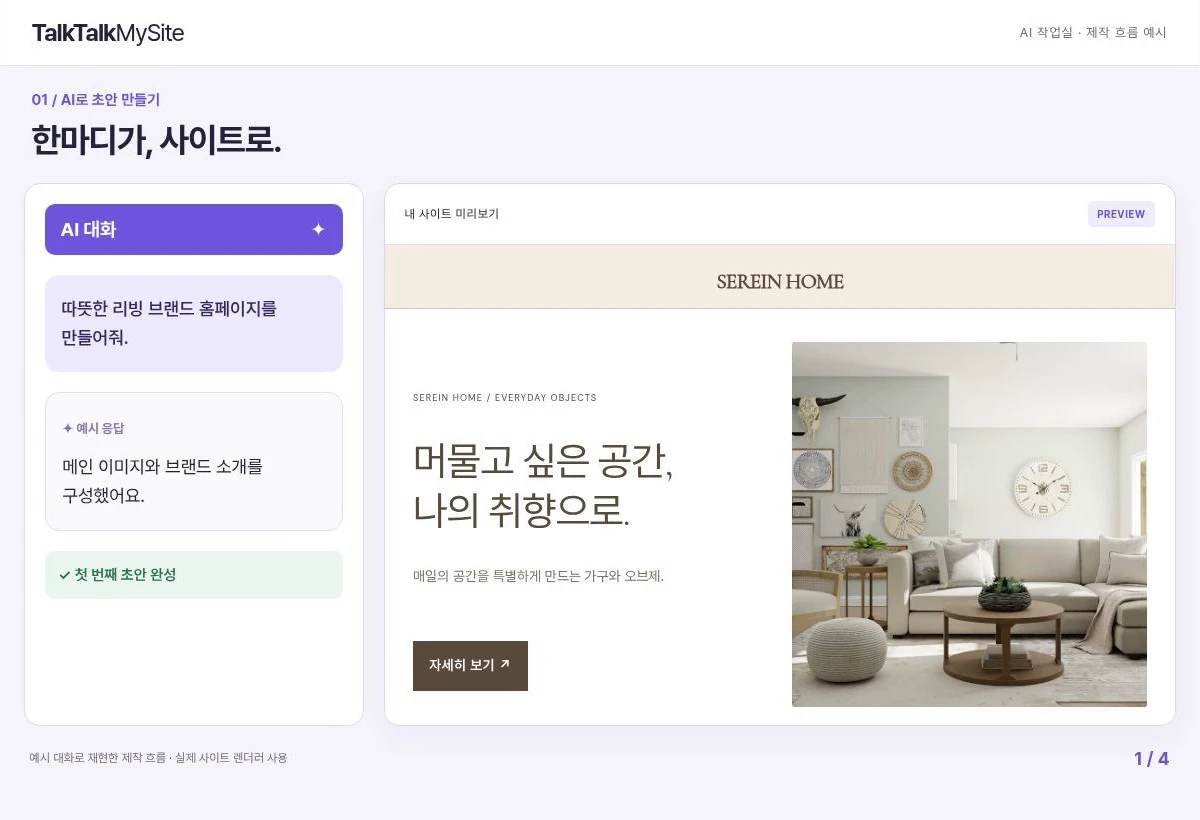
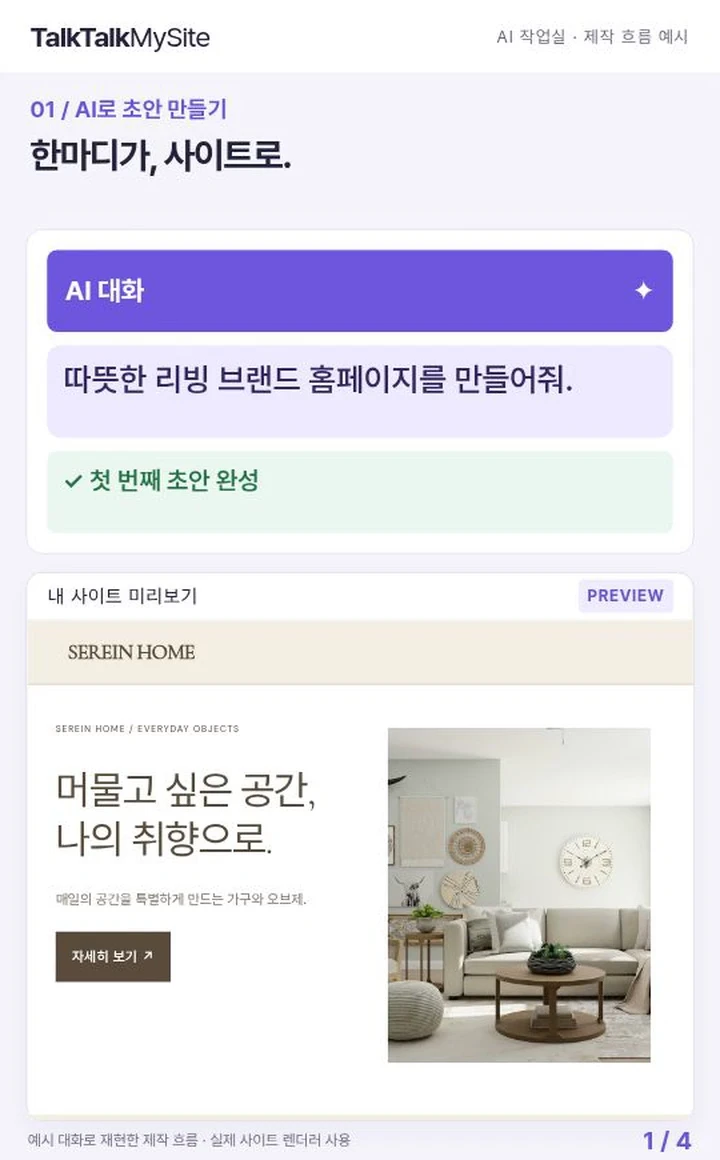
TalkTalkMySite lets beginners start with templates and AI chat without coding or design experience, making it practical to lay out needed pages before commissioning a custom build. Basic is for a website, Standard for a store, and Premium for multilingual use, so check which plan fits the scope you need.
Configure before publishing and choose a next step
With TalkTalkMySite’s visual editing, owners can update text and images themselves and check the mobile view again. However, owners remain responsible for checking content, layout, and business details. Payments, social login, domains, and shipping require setup if you plan to use them. Templates and owner editing may help reduce custom-build and recurring update costs, but first check plan terms, AI credits, and setup requirements. Search rankings and sales are not guaranteed, nor are unlimited use or error-free results. Start by opening the AI workspace and building a first “Classes” page, then check its menu and text size on your phone.
#BabyandKids #BabyandKidsWebsiteCreation #BabyandKidsNoCode #BabyandKidsTemplates #BabyandKidsDesign #BabyandKidsOnlinePresence #WebsiteCreation #NoCodeWebsite #AIWebsiteBuilder #WebsiteTemplates #WebsitePlanning #WebsiteManagement #NoCode #NoCodeBuilder #BuildWithoutCoding #DesignForBeginners #AIAssistedDesign #TemplateCustomization #ResponsiveDesign #MobileFriendly #ContentPlanning #BrandIntroduction #PageStructure #UserExperience #VisualEditing #WebsiteImages #LaunchPreparation #BeginnersGuide #MaintenanceChecklist #OnlineBusiness